Designed for Everyone, Everywhere: A Practical Guide to Web Accessibility
When Tim Berners-Lee invented the World Wide Web, he described its power as its universality: access by everyone, regardless of disability. More than three decades later, that promise still isn’t fully kept. Most websites still contain barriers that stop people from reading content, filling in forms or completing a purchase.
The World Health Organization estimates that around 1.3 billion people, about one in six of us, live with a significant disability. Add older users, people with temporary injuries and anyone browsing on a cracked phone screen in bright sunshine, and the audience that benefits from accessible design becomes almost everyone. That’s what “designed for everyone, everywhere” really means.
Key Takeaways
- About 1.3 billion people worldwide live with a significant disability, according to the WHO.
- WCAG 2.2 Level AA is the standard most accessibility laws and policies point to.
- The POUR principles say content must be perceivable, operable, understandable and robust.
- Most common failures, like low contrast and missing alt text, are quick to fix.
- Accessible websites reach more customers, reduce legal risk and support SEO.
What Is Web Accessibility?
Web accessibility, often shortened to “a11y,” is the practice of building websites that people with a wide range of abilities can perceive, understand, navigate and interact with. It covers people who are:
- Blind or have low vision and use screen readers like JAWS, NVDA or Apple’s VoiceOver
- Deaf or hard of hearing and rely on captions and transcripts
- Living with motor impairments who navigate by keyboard, switch devices or voice control
- Neurodivergent or have cognitive disabilities and need clear, predictable layouts
- Older adults experiencing gradual changes in vision, hearing and dexterity
Accessibility isn’t a separate version of your website. It’s simply good design done thoroughly.
The Standard: WCAG
The Web Content Accessibility Guidelines (WCAG) are published by the World Wide Web Consortium (W3C) through its Web Accessibility Initiative. The current version, WCAG 2.2, became an official W3C Recommendation in October 2023. Each guideline has success criteria at three levels: A (minimum), AA (the level most laws reference) and AAA (enhanced).
WCAG is built on four principles, easy to remember with the acronym POUR:
Perceivable
Information must be presented in ways people can sense. That means text alternatives for images, captions for video and enough color contrast for text to be read. WCAG AA asks for a contrast ratio of at least 4.5:1 for normal body text.
Operable
Everything must work with a keyboard, not just a mouse. Users need enough time to read content, nothing should flash in ways that could trigger seizures, and focus indicators must be clearly visible.
Understandable
Content should be readable, pages should behave predictably, and forms should help people avoid and fix mistakes with clear labels and error messages.
Robust
Code should work reliably with current and future assistive technologies. Clean, semantic HTML is the foundation here.
Accessibility and the Law
Accessibility is increasingly a legal requirement, not just a nice-to-have.
- United States: Courts have repeatedly applied the Americans with Disabilities Act (ADA) to websites, and thousands of digital accessibility lawsuits are filed every year. Government websites must also follow Section 508 of the Rehabilitation Act.
- United Kingdom: The Equality Act 2010 requires service providers to make reasonable adjustments, and public sector bodies must meet specific accessibility regulations.
- European Union: The European Accessibility Act began applying on 28 June 2025, covering many consumer-facing digital products and services, including e-commerce.
We’re not lawyers, and requirements vary by country and industry, but the direction is clear: accessible websites lower legal risk.
Why Accessibility Is Good for Business (and SEO)
A bigger audience
Every barrier you remove opens your site to more customers. An inaccessible checkout doesn’t just frustrate people; it loses sales.
Better search visibility
Many accessibility best practices overlap with technical SEO. Search engines can’t see images, so descriptive alt text helps both screen reader users and Google Images. A logical heading structure helps assistive technology and helps search engines understand your content. Descriptive link text like “view our pricing” is clearer than “click here” for everyone.
Better experience for all
Captions help people watching videos on mute. High contrast helps people outdoors. Clear forms reduce abandonment for every user. Accessibility improvements almost always improve usability across the board.
The Most Common Accessibility Problems
WebAIM’s annual “WebAIM Million” study analyzes the home pages of the top one million websites. Year after year it finds detectable WCAG failures on more than 95% of them. The same problems keep appearing:
- Low-contrast text, the single most common issue
- Missing alternative text for images
- Empty links with no readable text, often icon-only links
- Missing form labels
- Empty buttons
- Missing document language declaration
The encouraging news? Most of these are quick fixes.

Practical Fixes You Can Make This Week
Write meaningful alt text
Describe what the image shows and why it matters in context. A product photo might be “Navy wool overcoat with double-breasted buttons.” Purely decorative images should use an empty alt attribute (alt="") so screen readers skip them.
Check your color contrast
Free tools like the WebAIM Contrast Checker tell you instantly if your text passes. Light grey text on white backgrounds is the usual culprit.
Use real HTML elements
A <button> is focusable and keyboard-friendly by default. A <div> styled to look like a button is not. Use <nav>, <main>, <header> and <footer> landmarks so screen reader users can jump between sections.
Label every form field
Each input needs a visible <label> connected to it. Placeholder text disappears as soon as someone starts typing, so it’s not a substitute.
Make focus visible
Never remove the focus outline without replacing it with something equally clear. Keyboard users rely on it to know where they are on the page.
Add captions and transcripts
Auto-generated captions are a start, but review them for accuracy, especially brand names and technical terms.
Use ARIA carefully
Accessible Rich Internet Applications (ARIA) attributes can help with complex widgets like tabs and modals. But the first rule of ARIA is to prefer native HTML when it exists. Incorrect ARIA can make things worse.
Accessible Content Writing
Accessibility isn’t only a job for developers. The way content is written and structured matters just as much as the code underneath it.
Use headings to create an outline
Screen reader users often jump from heading to heading to understand a page, the same way sighted visitors scan. Use one H1 for the page title, H2s for main sections and H3s for subsections. Never pick a heading level just because you like its font size.
Write in plain language
Short sentences, familiar words and clear instructions help everyone, including people with cognitive disabilities, people reading in a second language and busy visitors skimming on a phone. Tools like the Hemingway Editor can flag overly complex sentences.
Make links make sense on their own
Many screen reader users pull up a list of all links on a page. A list of ten “Read more” links is useless. Write link text that describes the destination, such as “Read our local SEO case study.”
Don’t rely on color alone
If a form error is shown only by turning a field red, people with color blindness may miss it. Pair color with an icon, text message or border change.
Format for scanning
Bullet points, short paragraphs and descriptive subheadings reduce cognitive load. Tables should have proper header cells so assistive technology can announce rows and columns correctly.
Accessible Media: Images, Video and Audio
Media brings pages to life, but it’s also where many accessibility gaps appear.
- Complex images such as charts and infographics need a short alt text plus a longer description nearby, so the key data is available as text.
- Videos need accurate captions for people who are deaf or hard of hearing, and audio description or a transcript when important information is only shown visually.
- Podcasts and audio should come with a transcript, which also gives search engines indexable text.
- Autoplay should be avoided. If something moves, blinks or scrolls automatically for more than five seconds, WCAG expects a way to pause, stop or hide it.
- Animations should respect the
prefers-reduced-motionsetting for people with vestibular disorders.
Accessibility for Forms and Checkout
Forms are where accessibility problems cost businesses the most money, because they sit right at the point of conversion: contact forms, quote requests, sign-ups and checkouts.
Follow these principles:
- Visible labels for every field, positioned consistently above or beside the input.
- Clear required-field indicators, explained at the top of the form.
- Helpful error messages that say what went wrong and how to fix it, placed next to the field and announced to screen readers.
- Logical tab order that follows the visual order of the form.
- Autocomplete attributes such as
autocomplete="email"so browsers and password managers can fill details automatically, which WCAG 2.2 encourages to reduce redundant entry. - Accessible CAPTCHAs. Traditional image puzzles block many users. Consider alternatives that don’t rely on solving visual tests.
If you sell online, test the full journey from product page to order confirmation using only a keyboard. It’s one of the fastest ways to discover barriers that cost you sales.
How to Test Accessibility
Combine automated and manual testing:
- Automated tools such as WAVE, axe DevTools and Google Lighthouse catch many common issues in seconds.
- Keyboard testing: unplug your mouse and try to navigate your whole site with Tab, Shift+Tab, Enter and Space.
- Screen reader testing: try VoiceOver on a Mac or iPhone, or the free NVDA screen reader on Windows.
- Zoom testing: zoom your browser to 200% and check nothing breaks or overlaps.
- User testing: nothing replaces feedback from people with disabilities who use assistive technology every day.
Automated tools typically catch only a portion of WCAG issues, so manual checks are essential.
Make Accessibility Part of the Process
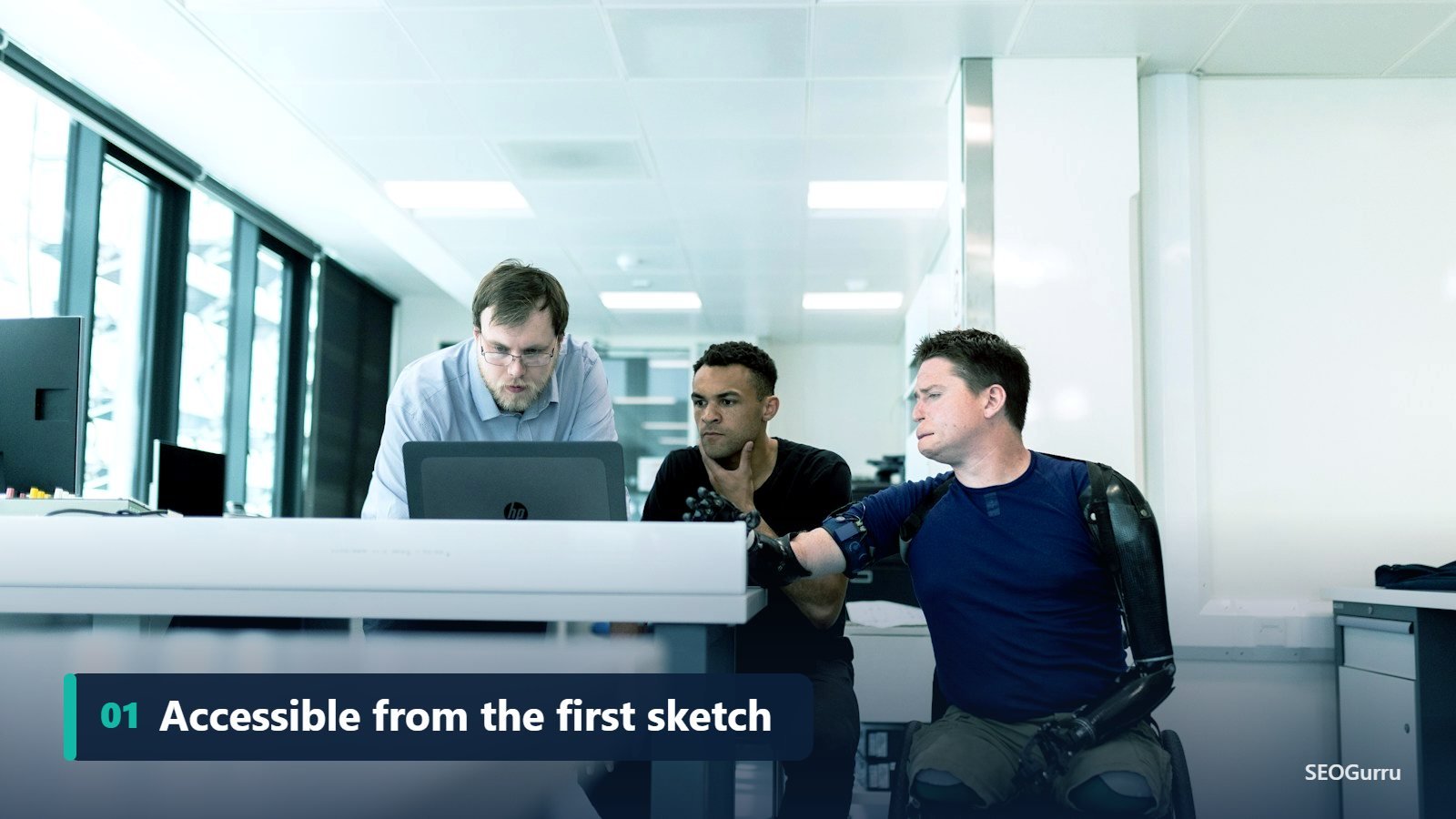
The cheapest time to fix an accessibility issue is before it’s built. Bring accessibility into the wireframe stage, include it in design systems and component libraries, and add it to your quality checklist before every launch. Over time, it stops being a project and becomes a habit.
Want to know how accessible and search-friendly your website is today? Book a free SEO audit and we’ll highlight quick wins that help both users and rankings.
Frequently Asked Questions
Quick answers to the questions we hear most about web accessibility.
What WCAG level should my website meet?
Most organizations aim for WCAG 2.2 Level AA. It is the level referenced by most accessibility laws and policies in the US, UK and European Union.
Do accessibility overlays or widgets make a site compliant?
Not on their own. Overlays can’t fix underlying code problems such as missing labels or poor structure, and many accessibility experts and disability advocates advise against relying on them.
Does accessibility affect SEO?
There’s no single accessibility ranking factor, but practices like descriptive alt text, logical headings, meaningful link text, captions and fast, stable pages help search engines understand your content and help users stay on it.
How much does it cost to make a website accessible?
It depends on the size and age of the site. Building accessibility in from the start costs far less than retrofitting. Many quick wins, such as alt text, contrast fixes and form labels, can be made at low cost.
How can I test my website for accessibility for free?
Start with free tools like WAVE, axe DevTools and Google Lighthouse, then test manually with a keyboard and a free screen reader like NVDA or Apple VoiceOver.
Who is responsible for website accessibility?
Everyone involved in the website shares responsibility: designers, developers, content writers, marketers and the business owner. Accessibility works best when it is part of every stage of the process.